

Settings
General
Here you can configure general settings. Automatic saving, what happens when you close the window by clicking the "X," and specifying a DPS meter path (which may be executed immediately upon startup).
You can also manually check for updates and view the changelogs.
The app logs can be viewed here for debugging purposes.
Timer
The default timers can be set here. You can configure the Shugo and Riss timers to specify the interval and the time of day. The start time is always set to 0:00.
For Shugo, for example: 0:00 / 0:15 / 0:30 / 0:45 For Riss, for example: 0:00 / 1:00 / 2:00 / 3:00
Presentation
Here are 6 different layouts for the app's overall design.
Languages
The following languages are currently offered: German, English, and Russian
Profiles
This is the general management section for your profiles. Here, you can back up, load, reset, or even duplicate profiles.
You can also change the path where the profiles are saved.
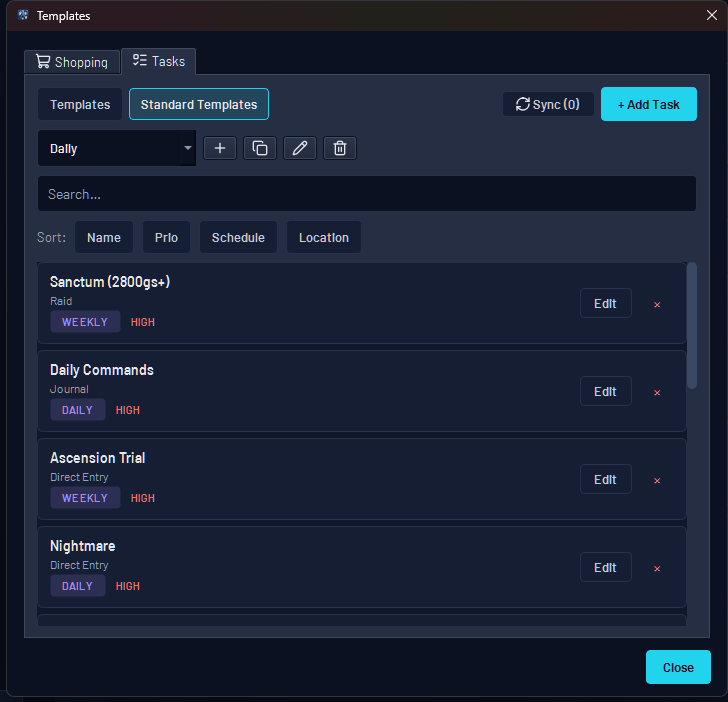
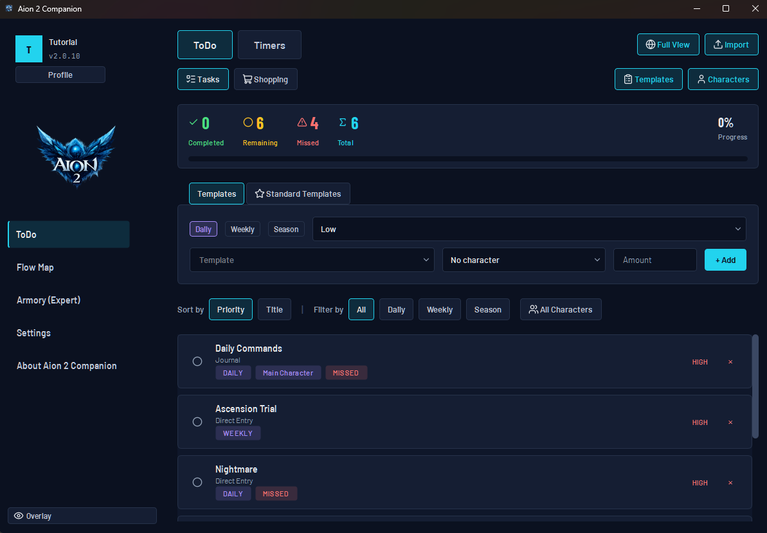
To-Do & Timer
Daily, weekly, and seasonal tasks per character, with automatic reset and Shugo/Riss timers.
Overview
In the To-Do & Timer section, you can view the existing timers for Daily and Weekly Reset.
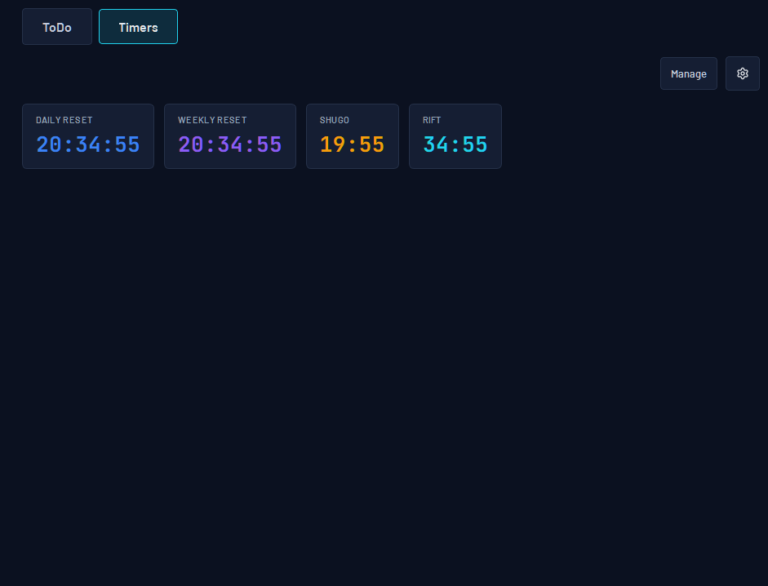
You can set the standard timer under Settings -> Timer. There, you can set the time, date, day of the week, and notification sound.
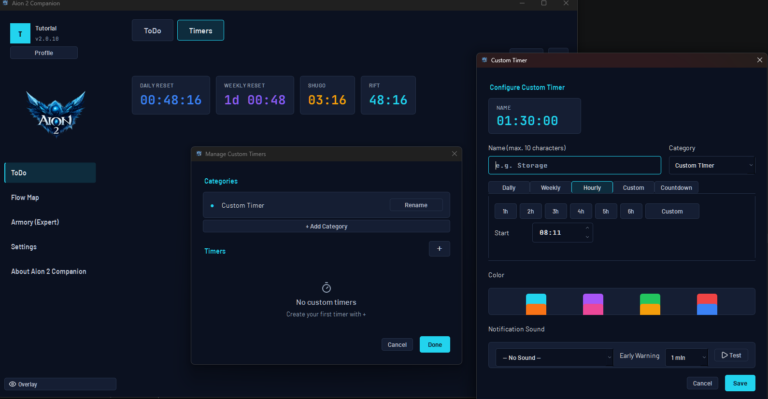
You can also add your own new timers here. To keep things organized, you can add your own categories as well. For example, the category "Bosses" or "Abyss Bosses." Then, when creating a timer, you can select the category in which you want the timers to be displayed.
You can also add a notification sound. The sounds are retrieved from your system and displayed as a drop-down menu for you to choose from.
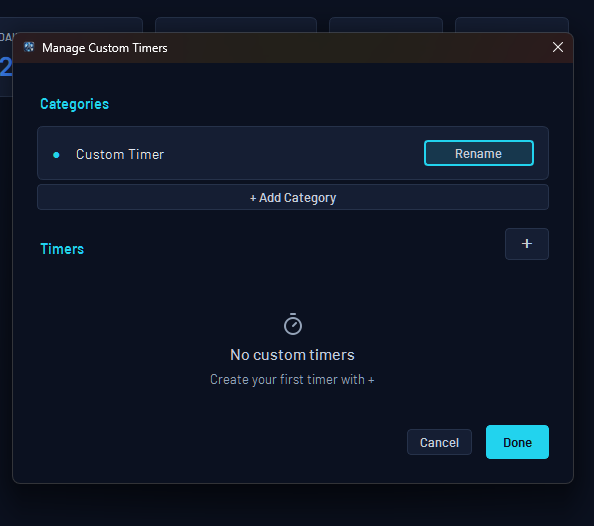
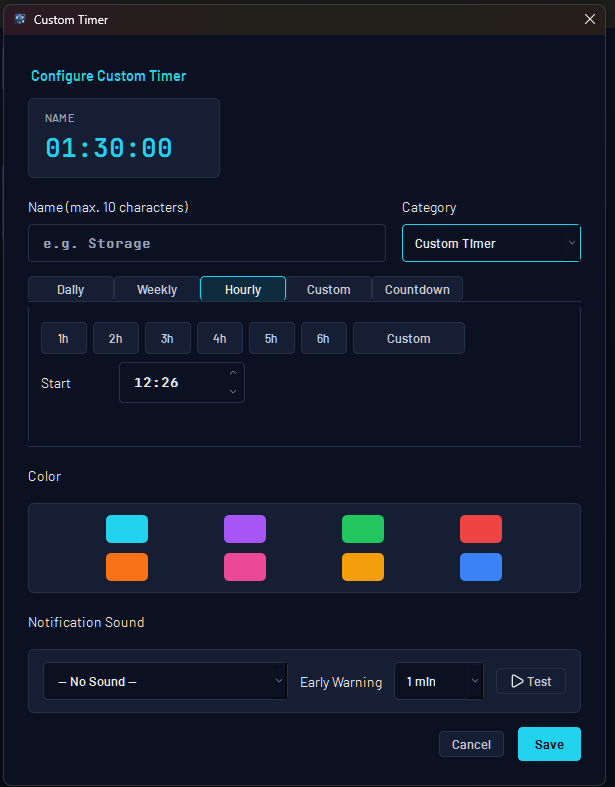
Types of Timers
Daily / Weekly Reset, Hourly, Custom, or Countdown.
Daily and Weekly: With this type of timer, you can set when the reset should occur.
Hourly: Here you can set the start time and the interval.
Custom: Here, you can set the start time and any interval up to 99 hours. (For example, for Abyss Raids)
Countdown: This type applies to in-game activities that you can repeat after a certain amount of time has passed since they were triggered. For example, the Black Market. If you buy an item, the shop resets after a certain amount of time.
Armory (expert)
Plan your gear, skills, Arcana, and Daevanion—with recommendations on where your build still has gaps.
There are some great features here, such as Daevanion's "Find Best Route," automatic calculation of Arcana sets based on desired points, and much more.
Overview
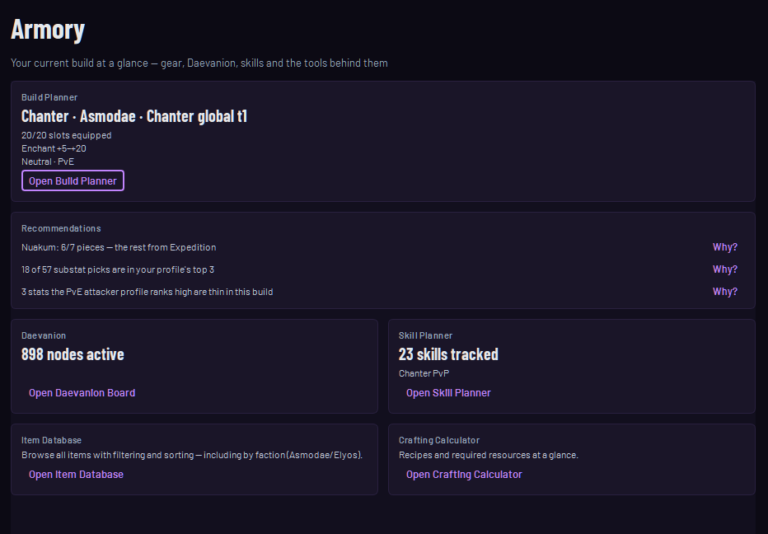
The main page features quick links to the Build Planner, Daevanion Board, Skill Planner, and more.
Build Planner
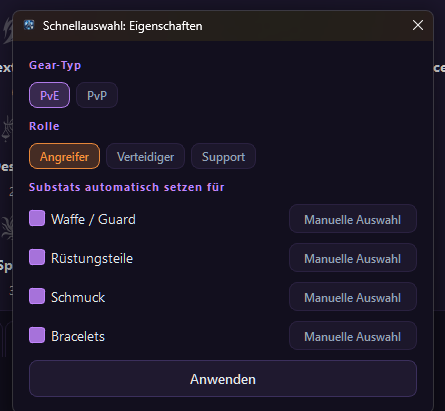
The Build Planner has a Quick Select feature that allows you to quickly assign identical gear parts to the correct slots. A properties feature, along with its settings, lets you define in advance which properties should be set and in what order of priority.
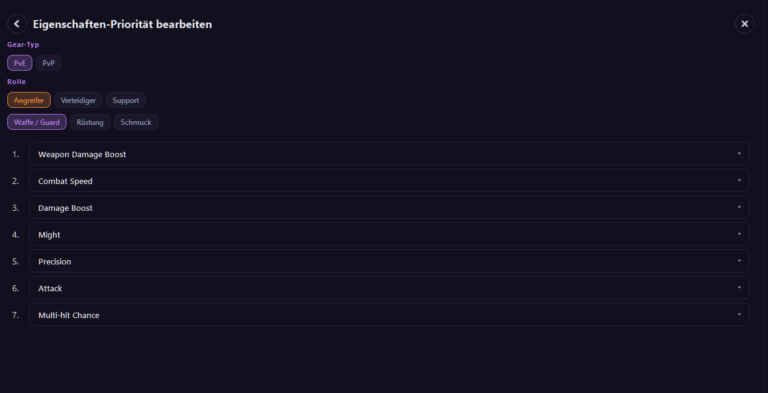
You can define up to 6 different profiles here: PvE/PvP, and for each one, Attacker, Defender, and Support.
You can then quickly assign these to the respective equipment parts using the Properties button.
Skill Planner
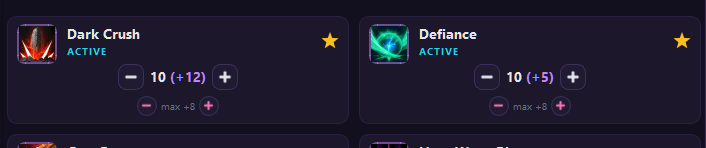
In the Skill Planner, you can distribute your available skill points. Each skill can be raised to level 10 using standard skill points. If you've already selected skills in the Gear and Daevanion boards, they will be displayed here as well. You can use "wish points" to increase skills by up to 8 levels.
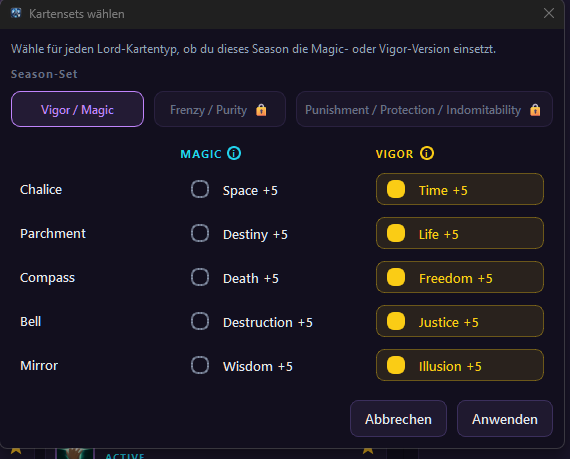
Wish Points are used to select and display the perfect Arcana cards via the Arcana Calculator. When new Wish Points are distributed, they are also displayed within the skill itself.
If you want to use the Arcana calculator, you must select the desired effects for each Arcana card and then click "Apply."
Arcana Sets
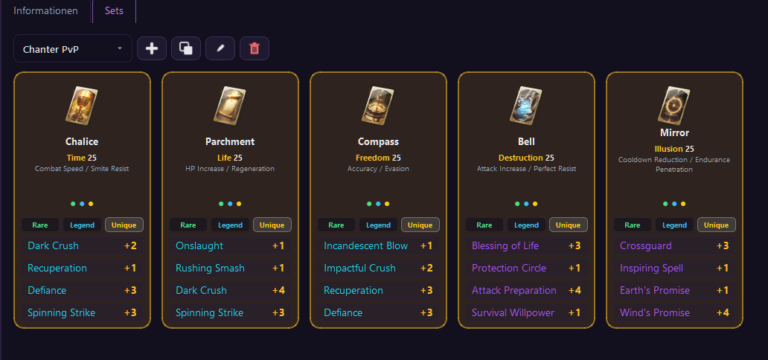
This is where you'll see your Arcana sets—the ones you've either calculated using the Arcana Calculator or created yourself.
Daevanion Board
The Daevanion Board allows you to use checkboxes to select substats, combined substats, passive skills, and active skills that exist on the respective board. These are then highlighted on the Daevanion Board.
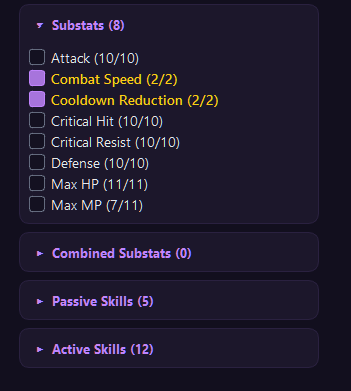
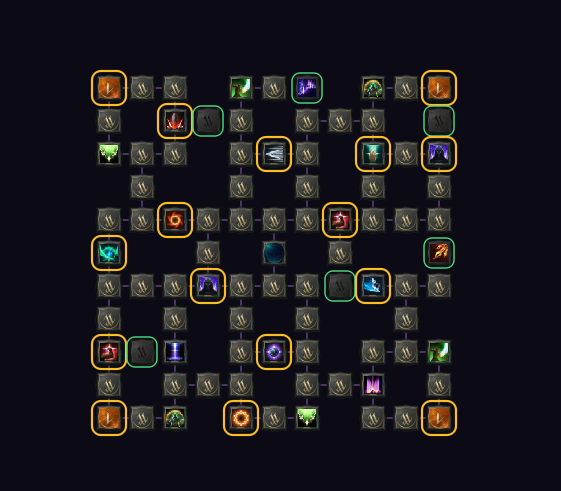
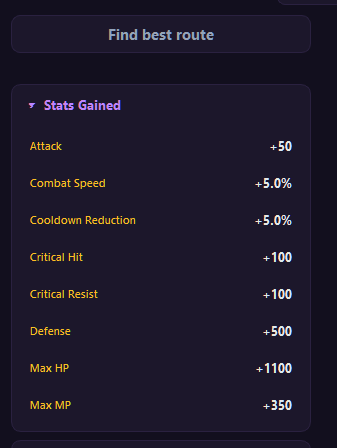
The "Find Best Route" feature uses the optimal route to effectively connect all selected points.
Item Database
All items with values, filters, and details—searchable offline.
Interactive Map (planned)
An interactive map where you can draw routes and view resources and monster types by area.